
How to Extract High-Quality Frames from Video Without Losing Detail
Learn how to capture clean, full-resolution still frames from video with a local player, and how to prepare those images for sharing on the web.
Dec 19, 2025|Toolbox Image|#video-frame-extractor #video-tools #image-tools
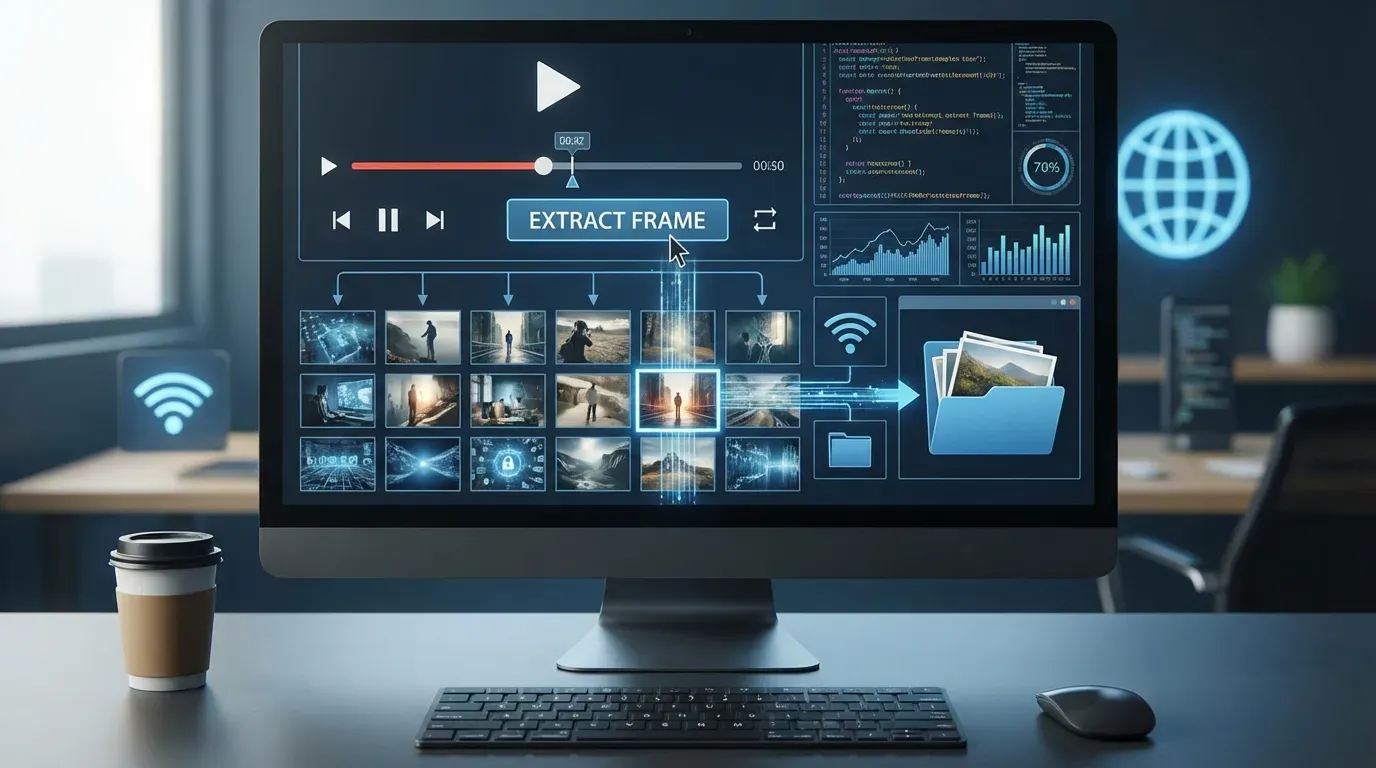
How to Extract High-Quality Frames from Video Without Losing Detail
Have you ever paused a video to catch a funny expression or a beautiful detail, only to find the screenshot is blurry or the playback controls are in the way? We’ve all been there.
Quick Solution: Pause on the exact frame in a desktop player and use its snapshot command. You get the original pixels from the video file, with no player controls baked into the image.
Whether you’re a content creator needing a YouTube thumbnail, a designer looking for reference material, or just someone who wants to save a memory from a family video, extracting a clean, high-quality frame is essential.
Why a Frame Grab Beats a Screen Screenshot
A screenshot key is quick, but a proper frame capture has significant advantages:
-
Original Resolution: A snapshot exports the exact pixel data from the video file, often 1080p or 4K, rather than whatever size your player window happens to be.
-
No Interface Clutter: No play buttons, progress bars, or mouse cursors overlaying your image.
-
Frame-by-Frame Precision: Most desktop players let you step forward one frame at a time to land on the exact moment.
-
Privacy: A local player keeps the video on your device; nothing needs to be uploaded to a server.
Step-by-Step Guide
Here is a reliable workflow for Windows, macOS and Linux. It works with the desktop player you likely already have installed.
1. Open the Video in a Local Player
Open your file (MP4, WebM, MOV and MKV all work) in a desktop player such as VLC, mpv, or your operating system’s built-in video app. Because playback is local, even large 4K files stay responsive and no upload is involved.
2. Navigate to the Moment
Play to the general section, then pause. Use the player’s frame-step shortcut (VLC uses E by default) to move one frame at a time until you land on the exact expression or detail you want. This is far more precise than dragging a progress bar.
3. Capture at Native Resolution
Use the player’s snapshot command instead of the operating system screenshot key. VLC calls it Take Snapshot (Shift+S) and saves a PNG at the video’s native resolution. PNG avoids another round of JPEG compression, which matters if you plan to edit the still afterwards.
What to Do With the Frame Next
A raw video frame is often larger and heavier than a web image needs to be. A practical workflow is:
-
Crop out letterboxing or unwanted edges with Crop & Rotate
-
Resize to the exact dimensions your thumbnail or post needs with Resize Image
-
Compress the result with Compress Image before uploading
If the frame contains a face, a license plate, or on-screen text you do not want to publish, blur it before sharing — see Blur Face Online and Blur Text.
Tips for Best Results
-
Use High-Quality Source Video: The quality of the extracted image depends entirely on the source video.
-
Avoid Motion Blur: Try to pick frames where the subject is relatively still or the shutter speed was high.
-
Check Lighting: Well-lit scenes produce sharper, less grainy still images.
-
Watch for Interlacing: Older TV footage may show comb-like lines on a single frame. Enable deinterlacing in your player before capturing.
FAQ
Can I extract a frame without uploading my video?
Yes. A desktop player such as VLC or mpv reads the file locally, so the video never leaves your device. No account and no cloud service are required.
Why is my frame blurrier than the video looked while playing?
Motion blur is baked into individual frames of moving footage, and smooth playback hides it. Step through several adjacent frames and pick one where the subject is sharpest, or start from a higher-bitrate source file.
What format should I save the frame in?
PNG for editing and archiving, because it avoids extra compression. Convert to JPEG or WebP with a compressor once the image is final and you need a smaller file.
Is a phone screenshot good enough?
It works in a pinch, but it captures the screen rather than the video pixels, so the result is limited by your display resolution and may include player controls. A frame snapshot from a local player is always cleaner.
Conclusion
Extracting frames from video doesn’t have to be complicated. A local player plus a native-resolution PNG snapshot gives you the source pixels without an upload or an on-screen control in sight.
👉 Prepare the frame for the web
Related image editing guides
How to Blur a Photo Background Online Without Blurring the Subject
Learn how to blur a photo background online, keep the subject clear, avoid common selection mistakes, and create a cleaner portrait or product image.
Box Select and Freehand Blur: Two Precise Ways to Hide Image Details
Learn when to use box select blur and freehand selection blur to hide faces, text, screens, plates, and private details in images online.
Unblur Screenshot Online: Make UI Text Easier to Read
Learn how to unblur screenshots online, improve fuzzy UI text, and protect private details after enhancing clarity.
Blur Face Online: A Practical Privacy Guide
Learn how to blur faces online before sharing photos. Protect identities in group pictures, events, listings, and social posts without losing context.