
How to Blur a Boarding Pass Before Sharing It Online
A boarding pass holds your full name, booking reference, flight details and a machine-readable barcode. Here is how to redact every field before you post a travel photo.
November 5, 2026|Toolbox Image|#travel-privacy #document-redaction #blur-image#image-tools
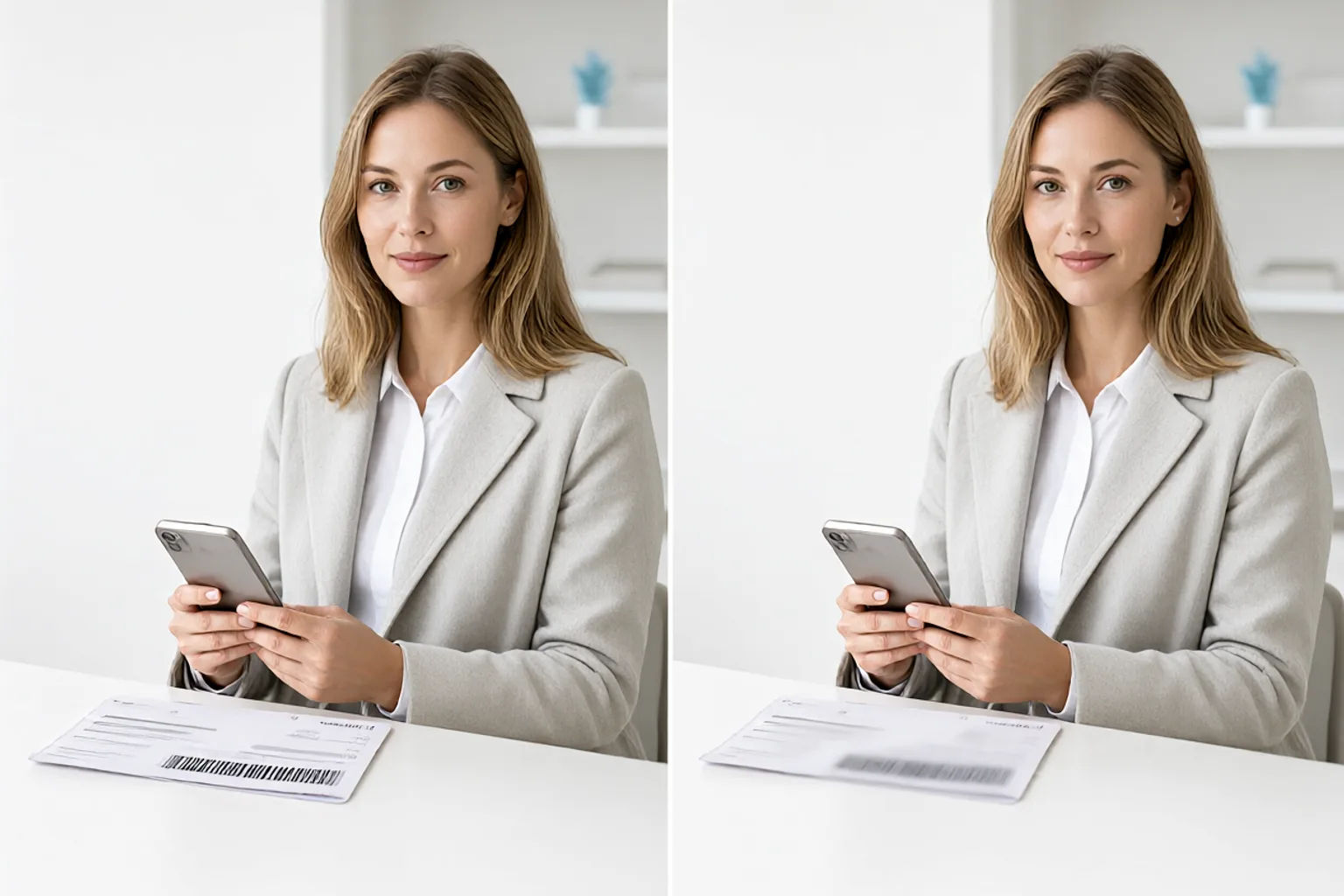
How to Blur a Boarding Pass Before Sharing It Online
The airport selfie feels harmless. Then you notice the boarding pass sitting on the tray table in the corner of the frame, with the barcode pointing straight at the camera. That small rectangle is not just a picture of a ticket — it is a readable copy of your booking.
A boarding pass barcode can encode your full name, booking reference, flight number, date, seat and frequent flyer number. Anyone with a phone and a barcode reader app can recover that from a sharp photo. This guide covers what to hide, what is safe to leave visible, and the quickest way to redact a travel document in the browser.
Quick Takeaways
-
Treat the barcode or QR code as the highest-risk item on the pass — cover the whole symbol, not part of it.
-
Use Toolbox Image with a box selection to blur the name, booking reference and barcode in one pass.
-
If the pass sits near the edge of the photo, cut it out with Crop & Rotate instead of masking it.
-
Keep the airline logo, destination city and general layout if you like; they carry no personal identifiers.
-
Check the exported copy at 100% zoom and at the size you will actually post, then keep the original private.
What a Boarding Pass Actually Reveals
| Item on the pass | Risk level | What to do |
|---|---|---|
| Barcode / PDF417 / QR code | Critical | Cover the entire symbol with a solid block or heavy blur |
| Booking reference (PNR) | High | Blur it — a PNR plus surname can open a booking |
| Full passenger name | High | Blur every instance, including the small print |
| Frequent flyer number | High | Blur it; it links to an account |
| Flight number and date | Medium | Blur when combined with a name or PNR |
| Seat and gate | Low on its own | Usually fine, but blur if it sits beside the name |
| Ticket / e-ticket number | High | Blur it |
| Airline logo, airport code, destination | Low | Safe to leave visible |
The reason the barcode outranks the printed text is simple: text needs a human to read it, while a barcode gives a machine the whole record in one scan. Partial coverage does not help — a damaged symbol is often still recoverable, and any unmasked strip of the printed fields remains readable.
Step-by-Step: Redact a Boarding Pass in a Photo
-
Open the photo at 100% zoom and locate every copy of the pass, including reflections in a screen or a glossy table.
-
Decide whether the pass can simply be cropped out. If it is in a corner, Crop & Rotate removes the risk completely and keeps the composition clean.
-
Load the image into Toolbox Image. Box-select the whole barcode first and apply a solid block or the strongest blur setting.
-
Box-select the name, PNR, frequent flyer and ticket number fields. Keep each selection slightly larger than the text so no characters sit on the edge.
-
If the text sits on a curved or angled surface, switch to freehand selection and trace the region instead of using a rectangle.
-
For a pass printed with very small type, Blur Text in Image is a faster first pass; follow it with a manual check.
-
Zoom out to the display size, then back to 100%, and check the borders of every masked area for readable fragments.
-
Export a new copy. Do not overwrite your original, and do not upload the unedited file anywhere — see how to remove metadata from photos for the EXIF side of the problem.
For a broader pre-post routine, the privacy checklist covers the rest of the frame.
Blur, Mosaic, or Solid Block?
| Method | Best for | Watch out for |
|---|---|---|
| Solid block | Barcodes, QR codes, PNRs | Looks heavy, but is the only reliable choice for machine-readable symbols |
| Strong Gaussian blur | Printed names, small type | A light setting can leave word shapes readable |
| Mosaic / pixelation | Making a face or logo unrecognisable | Large squares over text can sometimes be reconstructed — see pixelate vs. blur |
For anything scannable, use a solid block. Our guide to blurring QR codes explains why blur alone is a weaker choice for machine-readable marks, and blur vs. redact covers the same decision on documents.
Common Mistakes to Avoid
Blurring Only the Barcode
The printed name and PNR are still right there in plain text. Redact both the symbol and the human-readable fields.
Posting the Pass Separately “For the Aesthetic”
A straight-on photo of a boarding pass is the easiest possible target for a scanner. If you want the travel vibe, photograph the window, the coffee, or a cropped corner without any text.
Using a Light Blur on Small Type
Airline passes use tiny condensed fonts. Two or three pixels of soft blur can still leave enough edge contrast for OCR. Zoom in and be deliberately heavy-handed.
Forgetting Luggage Tags and Hotel Key Cards
The same photo often includes a baggage tag with a surname and a booking number, or a key-card sleeve with a room number. Sweep the whole frame, not just the pass.
Assuming a Screenshot Is Safer Than a Photo
A screenshot of a mobile boarding pass is lossless and perfectly sharp — it is easier to scan than a photo. Apply the same masking to screenshots.
FAQ
Can I blur a boarding pass for free online?
Yes. Toolbox Image runs on your device with no signup. Box-select the barcode and text fields, apply a solid block or strong blur, and download a separate copy.
Is a boarding pass barcode really readable from a photo?
Often, yes. Modern phone cameras resolve the fine bars easily, and free scanner apps decode PDF417 and QR symbols in a second. Assume it is readable.
What if I already posted the photo?
Replace the image as soon as you can, but copies that were saved are out of your control. If a PNR was exposed, contact the airline and consider changing the booking reference where the airline allows it.
Should I blur the destination and flight number?
On their own they are low risk. Blur them anyway if they appear next to your name, because the combination is what identifies a trip.
Does blurring remove the EXIF location data?
No. Blurring changes pixels; EXIF is separate metadata. Strip it or export to a format that drops it — see how to remove metadata from photos.
What about passport and ID photos from the same trip?
Use the same routine, and be even stricter: see how to blur an ID document. Passports contain machine-readable zones that behave exactly like a barcode.
Final Thoughts
A boarding pass is one of the few everyday documents where a machine can read your personal data straight out of a photo. Thirty seconds of masking is enough.
Open Toolbox Image, cover the full barcode with a solid block, blur the printed identifiers generously, and export a copy that keeps the holiday without handing over the booking. For the wider sharing routine, the privacy checklist is a good final pass.
Related image editing guides
How to Blur an ID Document
Redact names, numbers and machine-readable zones on identity papers.
How to Blur a QR Code in an Image
Why scannable symbols need full coverage rather than a light blur.
Blur a Screenshot Online
A pre-share routine for screenshots that contain account details.
How to Remove Metadata from Photos
Strip location and device data that blurring cannot touch.