
How to Blur a Credit Card or Bank Detail in a Photo
Learn how to blur a credit card number, bank account, or payment detail in a photo before sharing it. A privacy-first workflow for receipts, screenshots, and support images.
October 23, 2026|Toolbox Image|#credit-card #privacy#redact-payment #image-tools
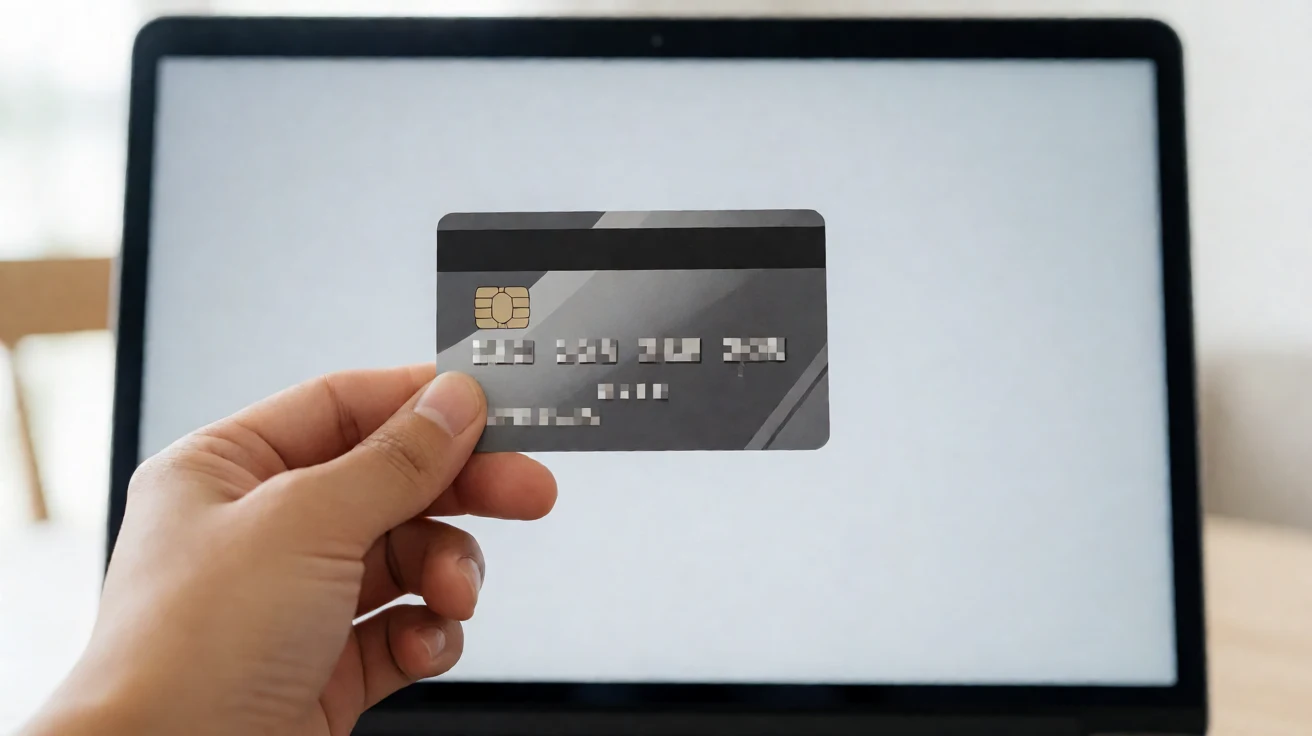
How to Blur a Credit Card or Bank Detail in a Photo
A photo of a credit card, a bank transfer screenshot, or a payment confirmation can contain everything a fraudster needs: the full card number, the expiry, the CVV, and sometimes the bank name and your name. People share these images constantly — to get help in a forum, to prove a payment to a seller, or to file a support ticket — often without covering the digits.
If you must share a payment-related image, blur the sensitive details first. This guide walks through hiding credit card numbers, bank accounts, and payment references in a photo, entirely client-side.
Quick Takeaways
-
Use Toolbox Image to blur card numbers, CVV, and account details before sharing a payment image.
-
Cover the full card number and the CVV — both are high-risk.
-
For public posts, use a solid block or strong pixelation, not a light blur.
-
Keep the original photo private; share only the redacted copy.
-
Use Compress Image Online if you need a smaller file to attach.
What Makes a Payment Photo Risky
A single image can expose:
-
The full primary account number (16+ digits)
-
The expiry date
-
The CVV or security code
-
The cardholder name
-
The bank or network logo
-
Account numbers on a transfer or statement
-
A signature on the back of a card
Any one of these is bad. Together, they are enough to attempt fraud. The safe habit is to assume a shared image is public the moment you send it.
When to Blur vs. When to Block
Blur is fine for a trusted viewer who just needs to see “a payment happened.” But card numbers are exactly the kind of data where you should prefer a solid block or strong pixelation, especially if the image will be public.
| Detail | Recommended treatment |
|---|---|
| Full card number | Solid block or strong pixelate |
| CVV / security code | Solid block (never just blur) |
| Expiry date | Blur or block |
| Bank account number | Solid block or strong pixelate |
| Bank or network logo | Usually safe to leave |
| Amount paid | Blur if you want privacy; often fine to show |
When in doubt, block it. A covered number is safer than a softened one.
How to Blur a Credit Card in a Photo
Here is the workflow with Toolbox Image.
-
Open the blur tool and upload the photo or screenshot.
-
Zoom in on the card or the payment detail.
-
Use box select to draw a rectangle over the card number.
-
Apply pixelate or strong blur to that region.
-
Repeat for the CVV and any account numbers.
-
Leave the bank logo and the fact that a payment occurred visible if helpful.
-
Download the redacted copy.
-
Share the edited version instead of the original.
If the card sits at an angle, use freehand selection to trace the number strip so you do not blur the background unnecessarily.
Card Photos vs. Receipts
A receipt usually shows less critical data than a card photo — often just the last four digits and an amount. Still, blur what you can. For a full card photo, be stricter: block the number and CVV completely.
Our guide to blurring receipts covers store slips in more detail, while this guide focuses on the card and account itself.
Use Cases
Asking for Help in a Forum
You want advice about a declined charge, but you do not want to post your card number. Blur the digits, keep the error text, and post the safe version.
Proving a Payment to a Seller
A marketplace seller asks for proof. Show the amount and date, block the card number and CVV, and send the redacted image.
Support and Ticketing
Support teams often need a screenshot, not your full card. Blur the sensitive fields before the file enters a ticket.
Sharing a Bank Transfer
Block the sending and receiving account numbers; keep the amount and reference if they help.
Tips for a Safer Result
-
Blur the CVV even if the number is already blocked — some images show it separately.
-
Check both sides of a card photo; the back often has the CVV and signature.
-
After blurring, zoom to full size and confirm no digit is readable.
-
If you blurred a region, verify you did not leave a corner of the number exposed.
-
Keep the original photo on a private device; only the redacted copy should travel.
Common Mistakes to Avoid
Using a Light Blur on the Card Number
A soft blur can leave digits partially readable. Use pixelation or a solid block for card numbers.
Forgetting the CVV
The CVV is small but high-risk. Block it completely.
Sharing the Original by Accident
Keep the unredacted photo private and rename the edited copy so you do not send the wrong file.
Leaving the Expiry Readable
The expiry plus the last four digits can aid fraud. Blur or block it too.
FAQ
Can I blur a credit card number for free?
Yes. Use Toolbox Image to upload the photo, select the number and CVV, and download a redacted copy from your browser.
Is blur enough for a card number?
For a trusted viewer, a strong blur may be acceptable. For public sharing, use a solid block or pixelation instead.
Should I blur or block the CVV?
Always block the CVV with a solid rectangle. It is the highest-risk detail.
What if the card is at an angle?
Use freehand selection to trace the number strip so you cover the digits without blurring the whole background.
Can I keep the bank logo visible?
Yes. The bank or network logo is generally safe to leave; it is the number and CVV that must be hidden.
Final Thoughts
A payment photo can give away everything needed to abuse your account. Before you share any image that shows a card, a transfer, or a statement, cover the digits that matter.
Open Toolbox Image, select the card number and CVV, apply a solid block or strong pixelation, and share a version that proves what you need without exposing your money.
Related image editing guides
Blur a Receipt or Payment Slip
Learn how to hide amounts, card hints, and account details on store receipts before sharing.
How to Blur an ID Document
A practical guide to sharing ID images safely by hiding the details that matter most.
How to Blur Text in an Image
Learn how to blur text in a screenshot or photo while keeping the useful parts visible.
Prepare Images for Email and Messaging Privacy
A privacy checklist for the images you send through email and chat.