
How to Blur a Receipt or Bank Transfer in a Screenshot Before Sharing
A practical guide to redacting receipts, payment confirmations and bank-transfer screenshots before you share them — what to hide, why a solid box beats blur for digits, and how to do it in your browser.
Oct 5, 2026|Toolbox Image|#privacy#image-editing#redaction#tutorial
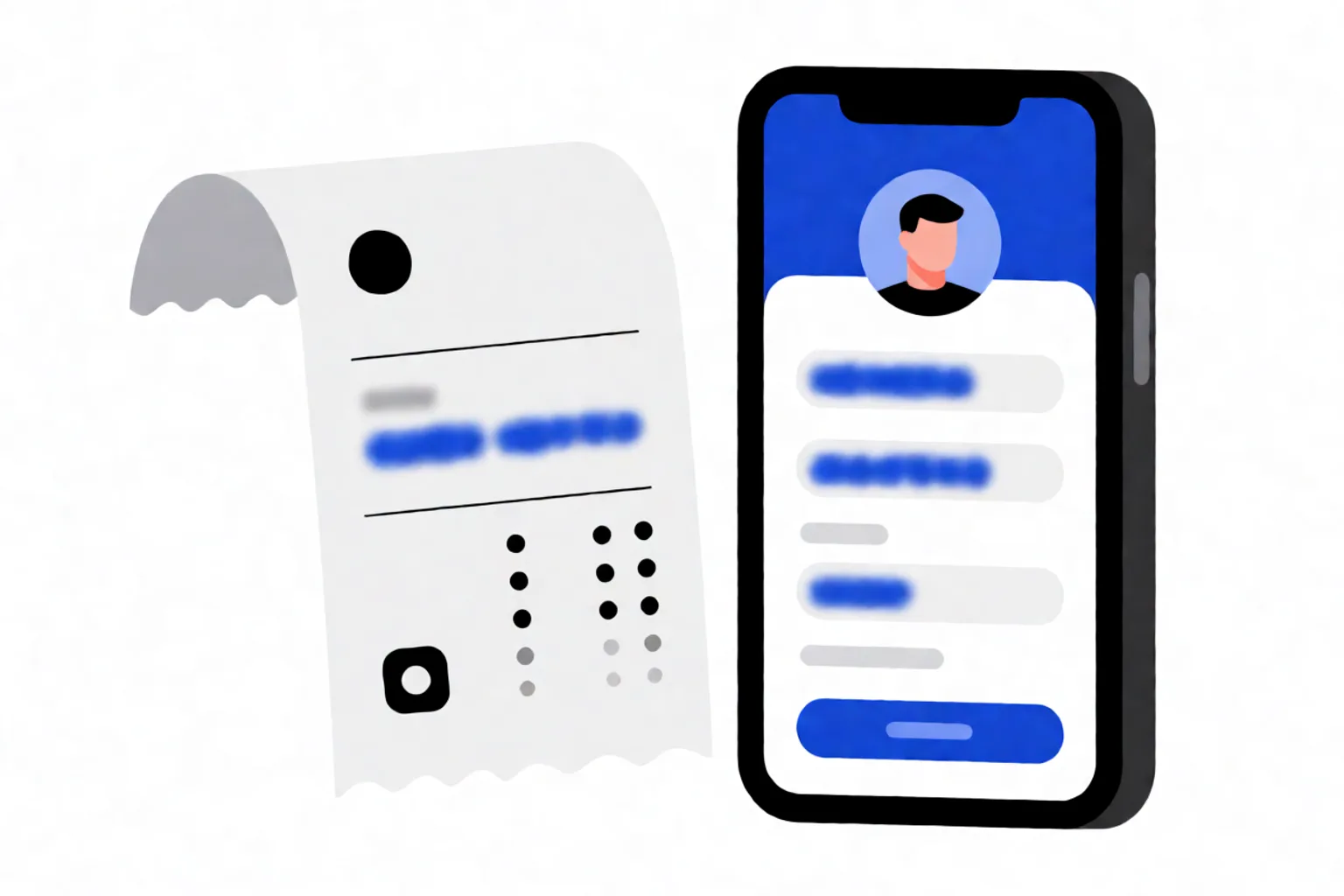
Blur a Receipt or Bank Transfer Before You Share It
A payment confirmation, a receipt, a bank-transfer screenshot — you send these to friends, landlords, support teams and reimbursement chats all the time. But a single screenshot often carries far more than the recipient needs: account numbers, balances, names, references and addresses. Before it leaves your device, redact it. You can blur or cover a receipt in your browser in seconds, and the image never has to be uploaded.
Why Banking Screenshots Need Real Redaction
A finance screenshot packs high-risk details into a tiny space. Even after you hide the obvious account number, these can still give you away:
- Account number, sort code, IBAN, card digits
- Your name (the personalised greeting)
- Balance
- Transaction descriptions and dates — a rent payment to a named landlord, a gym near your home, a supermarket you use twice a week all narrow down where you live faster than an address would
- Reference numbers that identify you to the bank
- Barcode or QR code that stays machine-readable
Cover more than the account number.
Blur, Pixelate or Solid Box — What’s Safe?
For sensitive digits, a solid black box is the only truly safe choice. Blur and pixelation are reversible transforms, and banking digits sit in a known font — the easiest case to reconstruct. If you must pixelate, make it thick and layered.
Even better than covering: crop. If you’re showing one transaction to support, crop to that row so the rest of the statement never enters the file you send. Crop is stronger than any mask because the data is gone, not just hidden.
How to Redact a Receipt or Transfer Online
- Open the screenshot in a browser editor such as Blur Image Online — no install, works on phone and desktop. For text-heavy fields, Blur Text in Image targets the characters directly.
- Cover the critical fields with a solid box — account number, card digits, name, balance, references.
- Pixelate or blur the rest you’d rather soften (merchant detail, secondary lines) — keep it thick.
- Crop to what’s needed if the recipient only requires one line or a total.
- Download the redacted copy and zoom in to 100% to confirm nothing is still readable. The original stays on your device.
For batch shots with faces or plates in the background, Automatic Privacy Blur can flag candidate areas to confirm.
Receipt Checklist (What to Hide vs Keep)
Hide: card last-4 / payment reference, order ID, name, billing or shipping address, phone, email, barcode/QR.
Keep (usually enough): merchant name, date, item or service, subtotal or total.
That’s enough to prove a purchase or payment without leaking the rest.
FAQ
Can I redact a screenshot on my phone?
Yes. Browser-based tools run on Android and iOS with no app install, so you can redact the screenshot on the device you captured it on.
Does redacting change the original file?
No. Editing is done locally in your browser; you download a processed copy and the original never leaves your device as part of the normal workflow.
Is blur or a black box better for account numbers?
A solid black box. Blur and pixelation can be reversed on clean digits, so for account numbers, card digits and balances, cover them with an opaque block — or crop them out entirely.
Should I use a random online editing app for bank screenshots?
Avoid unknown apps that upload your image to a server. Use a tool that processes the file in your browser so the screenshot of your statement never leaves your device.