
How to Blur a Signature on Documents and Contracts
Learn how to blur or redact a signature on a scanned document, contract, or form before sharing it. A privacy-first workflow for screenshots, PDFs, and photos of paperwork.
October 23, 2026|Toolbox Image|#signature-redaction #privacy#documents #image-tools
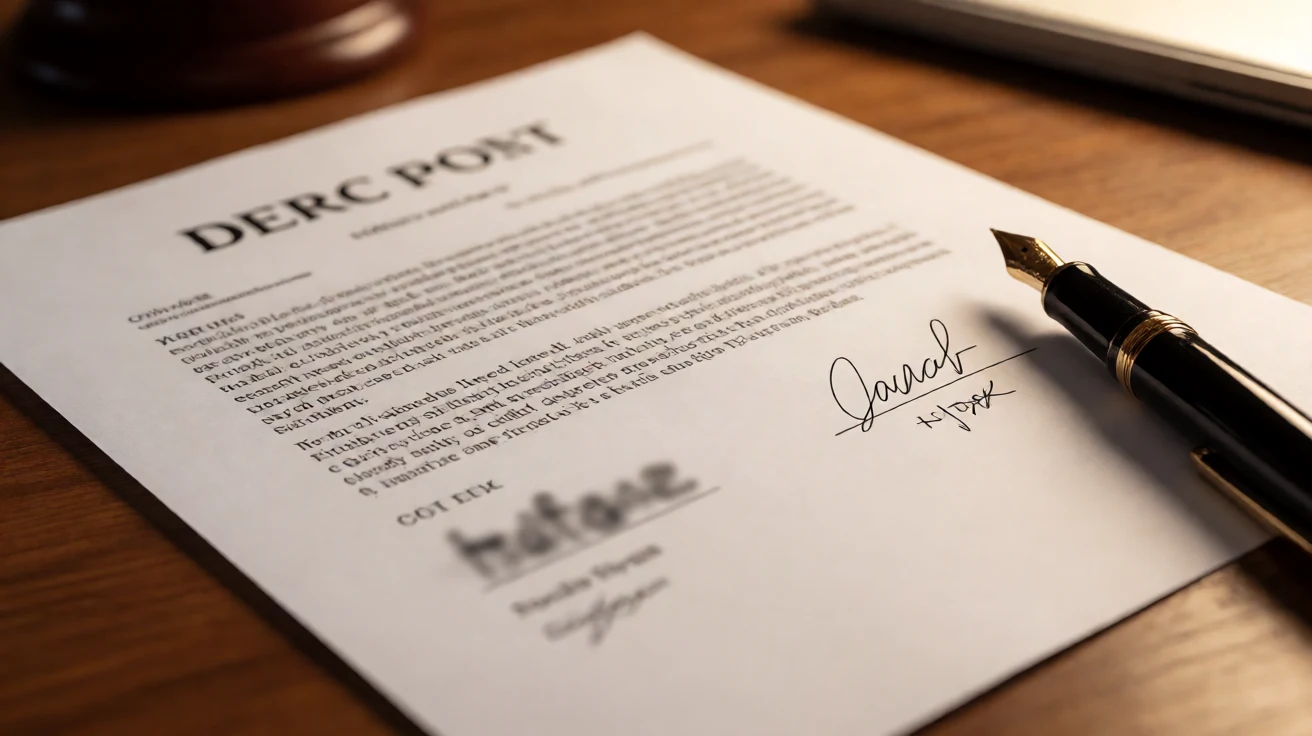
How to Blur a Signature on Documents and Contracts
A signature is one of the most personal marks you can leave on a document. It identifies you, and in the wrong hands it can be copied, traced, or reused. Yet people share scans of signed contracts, lease agreements, tax forms, and permission slips every day without thinking about that scribble at the bottom of the page.
If you need to share a document but do not want to expose your signature, blurring or redacting it first is a small step that removes a real risk. This guide shows how to hide a signature on a scanned document, a photo of paperwork, or a screenshot of a form — all from your browser, with no uploads.
Quick Takeaways
-
Use Toolbox Image to blur or pixelate a signature region before sharing a document image.
-
Blur the signature block, not the whole page, so the rest of the document stays readable.
-
For highly sensitive documents, use a solid block instead of blur — see our blur vs. redact guide.
-
Keep the original, unedited scan private; share only the redacted copy.
-
After redacting, use Compress Image Online if you need a smaller file to email.
Why Signatures Deserve Special Care
A signature is different from a name typed in a form. It is a behavioral biometric of sorts — the shape, rhythm, and pressure of your hand. That makes it useful for verification, but also useful to someone trying to forge or impersonate you.
You should consider hiding a signature when:
-
You are sharing a signed contract with a counterparty who does not need your full signature visible
-
You are posting a photo of paperwork to a forum, marketplace, or social platform for advice
-
You are sending a document to support or a ticketing system
-
You are uploading a sample or template that happens to contain a real signature
-
A child’s or another person’s signature appears on the document
The goal is not to make the document useless. It is to remove the one element — the signature — that most directly ties the paper to your identity.
When Blur Is Enough, and When It Is Not
Blur works well for casual sharing where the main risk is someone casually recognizing or copying the mark. But a determined person can sometimes reconstruct a lightly blurred signature from its outline.
Use blur when:
-
The document is going to a trusted but unnecessary viewer
-
The signature is small and the rest of the page matters more
-
You want the page to still look like a real document
Use a solid block or stronger pixelation when:
-
The document is highly sensitive (legal, financial, medical)
-
It will be public or posted anywhere open
-
The signature is large or clear enough to partially read through a light blur
If you are unsure, lean toward a solid block. A covered signature is safer than a softened one.
How to Blur a Signature Online
Here is the workflow with Toolbox Image.
-
Open the blur tool and upload the scanned document, photo, or screenshot.
-
Zoom in so the signature block fills a comfortable area.
-
Use box select to draw a rectangle around the signature.
-
Apply blur or pixelate to that region only.
-
Increase strength until the signature is no longer readable.
-
Check that nearby text (dates, names) you want to keep is still legible.
-
Download the redacted copy.
-
Share the edited version instead of the original scan.
If the signature runs across a line of text, switch to freehand selection to trace just the mark and avoid blurring the words you need.
Blur vs. Crop for Documents
For documents, cropping the signature off usually hurts more than it helps — you may cut into the clause it sits under. Blurring keeps the layout intact while hiding the mark.
| Method | Best For | Trade-Off |
|---|---|---|
| Blur signature | Keeping the page readable while hiding the mark | Needs enough strength |
| Solid block | Highly sensitive documents | Looks heavier, but safest |
| Crop | Removing an edge area with no important content | Can cut needed text |
| Pixelate | Strong masking with a deliberate look | Less natural than soft blur |
Common Documents Where Signatures Leak
-
Lease and rental agreements
-
Loan and credit applications
-
Permission slips and consent forms
-
Signed quotes and invoices
-
Tax or benefit forms shared for help
-
Contracts posted to a forum for review
In each case, the rest of the document often needs to stay visible — which is exactly why selective blur is the right tool.
Tips for a Clean Result
-
Blur the signature and any co-signer signatures, not just your own.
-
Watch for a signature on every page, including initialed ones.
-
If the document has a typed name above the signature, you can leave the typed name and blur only the handwritten mark.
-
Preview at the size it will be viewed; a signature that looks hidden on a big screen may be readable when shrunk.
-
Keep a clearly named original so you never accidentally send the wrong file.
Common Mistakes to Avoid
Using Blur That Is Too Light
A faint blur can leave the signature’s shape readable. Increase strength until the mark is gone at full size.
Forgetting the Second Page
Multi-page scans often carry a signature or initials on later pages. Check every page before sending.
Sharing the Original
Keep the unredacted scan private. Rename the edited copy so you do not confuse the two later.
Blurring Helpful Text
A signature often sits next to a date or account note. Use a tight selection so you hide the mark, not the information.
FAQ
Can I blur a signature for free?
Yes. Use Toolbox Image to upload the document image, select the signature, and download a redacted copy from your browser.
Is blur safe for a legal document?
For casual sharing, yes. For public posting of a sensitive legal document, prefer a solid block or pixelation over a light blur.
Should I blur or crop the signature?
Blur, so the page layout and surrounding text stay intact. Crop only if the signature is in a disposable edge area.
What if the signature is on a PDF?
Take a screenshot or export the page as an image, then blur the signature region before sharing the image.
Can I keep the rest of the document clear?
Yes. Selective blur affects only the region you select, leaving the rest of the document readable.
Final Thoughts
A signature is a direct link to your identity. Before you share a scan, photo, or screenshot of any signed paperwork, take a moment to hide that mark.
Open Toolbox Image, select the signature region, apply blur or a solid block, and share a version that protects you while still being useful.
Related image editing guides
How to Blur an ID Document
Learn how to share an ID safely by hiding the details that matter most while keeping the document usable.
Blur a Receipt or Payment Slip
A practical guide to hiding amounts, card hints, and account details on store receipts.
How to Remove Metadata from Photos
Learn how location and device data can leak from images and how to strip it before sharing.
How to Blur Text in an Image
Learn how to blur text in a screenshot or photo while keeping the useful parts visible.