
Blur Screenshots Before Attaching Them to a Support Ticket
Order numbers, email addresses and account IDs in a support screenshot travel further than you think. What to mask and what to keep.
November 8, 2026|Toolbox Image|#customer-support #screenshot-privacy #blur-image#image-tools
Blur Screenshots Before Attaching Them to a Support Ticket
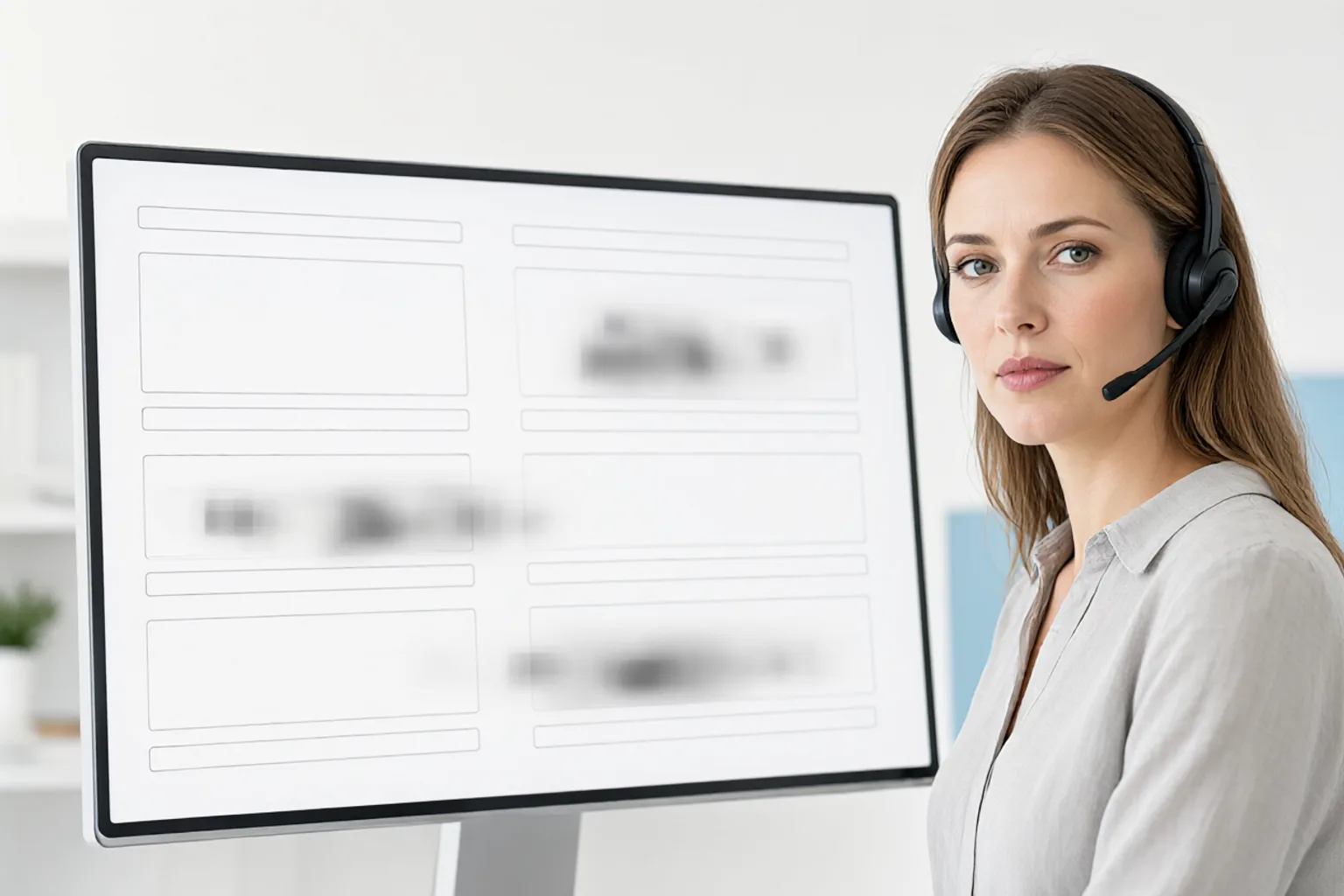
A bug report is most useful when it shows the real screen. That is also why it is the easiest place to leak data: one full-window capture contains the error message you want to report and the customer’s email, order number, address and session ID you did not mean to send.
Support attachments do not stay in one inbox. They get attached to an internal ticket, forwarded to an engineer, mirrored into a CRM, quoted in a knowledge-base article, and sometimes pasted into a public forum by someone trying to help. Assume the file will outlive the ticket.
Quick Takeaways
-
Keep the error text, UI state, timestamp and app version — these are what an engineer needs.
-
Mask emails, order IDs, account IDs, addresses, partial card numbers and anything in the URL bar.
-
API keys, tokens and session IDs belong in an opaque block, never a light blur.
-
A useful test: if removing a field would not slow down the investigation, remove it.
-
Check the attached file, not the image in your photo viewer — chat tools often re-encode uploads.
What to Keep and What to Mask
| Element | Keep or mask | Reason |
|---|---|---|
| Error message and stack trace | Keep (check for embedded IDs) | This is the actual evidence |
| Red banner / validation state | Keep | Shows the exact UI condition |
| Timestamp and app version | Keep | Needed to correlate with logs |
| Email and phone in the header | Mask | Direct personal data |
| Order number, invoice number | Mask | Links to a purchase and an address |
| Account / customer ID | Mask | A durable internal identifier |
| Address and postcode | Mask | Precise location |
| Last four digits of a card | Mask | Partial payment data is still sensitive |
| URL bar and query string | Mask | Often contains IDs, tokens or an internal host |
| Session cookie, API key, bearer token | Opaque block | A credential, not just a privacy detail |
| Browser tabs and bookmarks bar | Crop off | Unrelated account names and internal tools |
| Notification toast | Mask or dismiss | May contain a colleague’s name or a private message |
The URL bar deserves a second look. Query parameters frequently carry ?order=, ?user= or ?token= values that are far more revealing than anything visible in the page body. If you do not need the browser chrome, crop it off entirely with Crop & Rotate before masking the rest.
The “Does the Engineer Need It?” Test
For each field, ask: would removing this make the bug harder to reproduce? If the answer is no, mask it. This keeps the report readable and avoids the opposite failure — blurring the entire screenshot into uselessness.
A practical order:
- Capture the screen with notifications dismissed and unnecessary tabs closed.
- Crop away the browser chrome and any unrelated desktop area.
- Mask the identifier areas with a strong, local selection.
- Use an opaque block for credentials and barcodes.
- Zoom to 100% and confirm no short string is still legible.
Privacy Blur is a quick way to sweep the frame for candidates; Blur Text and Toolbox Image handle the selective masking. For short, high-contrast strings, a soft blur is a bad trade — see why a solid block wins and how much blur is enough.
Watch the Error Message Itself
Some error text embeds an identifier: “Order 88341 failed to sync for user 2291” or a stack trace containing an absolute home-directory path. That line is useful evidence, so do not delete it — mask just the number or the username portion, keeping the structure of the message intact.
The same applies to phone numbers and verification codes that appear inside a message preview; the phone number screenshot guide covers those.
After You Attach
Open the file from the ticket, not from your local drive. Messaging and helpdesk tools routinely compress or resize uploads, and a light blur around small text can look thinner afterwards. If the screenshot is going into a public forum or a community thread, treat it as permanent and re-check every masked region at the displayed size.
The general screenshot masking walkthrough covers the same pass for non-support captures.
FAQ
Is an order number really private? On its own, maybe not. Combined with a name, an email or a store, it is often enough to look up an order. Support tickets are exactly where those pieces end up together, so mask it.
Should I blur the whole page to be safe? No. A fully blurred screenshot cannot be used to debug anything, and the reader will ask you to send the original — which usually means an unredacted copy gets circulated anyway. Mask only the identifiers.
What if the token is already visible in the error text? Replace it or block it before sending. If a live secret was exposed, rotate it as well; masking a screenshot does not revoke a credential.
Does blurring work on a screenshot with tiny UI text? Small text needs a much wider radius than a face or a logo. Use an opaque block for short strings — see how much blur is enough for the reasoning.
Related image editing guides
Blur a Screenshot Online
The general pass, including browser chrome and notification areas.
Blur a Phone Number in a Screenshot
Handles numbers inside message previews and verification codes.
Blur Text in an Image
Techniques for dense, small UI text.
Blur vs. Redact
When a block is the only defensible choice for credentials.