
How to Blur Your Child's Face in Photos Before Posting Online
A practical guide to sharenting safety: why and how to blur your child's face before posting on social media, what else to hide, and how to do it in your browser without uploading the photo.
Oct 5, 2026|Toolbox Image|#privacy#image-editing#redaction#tutorial
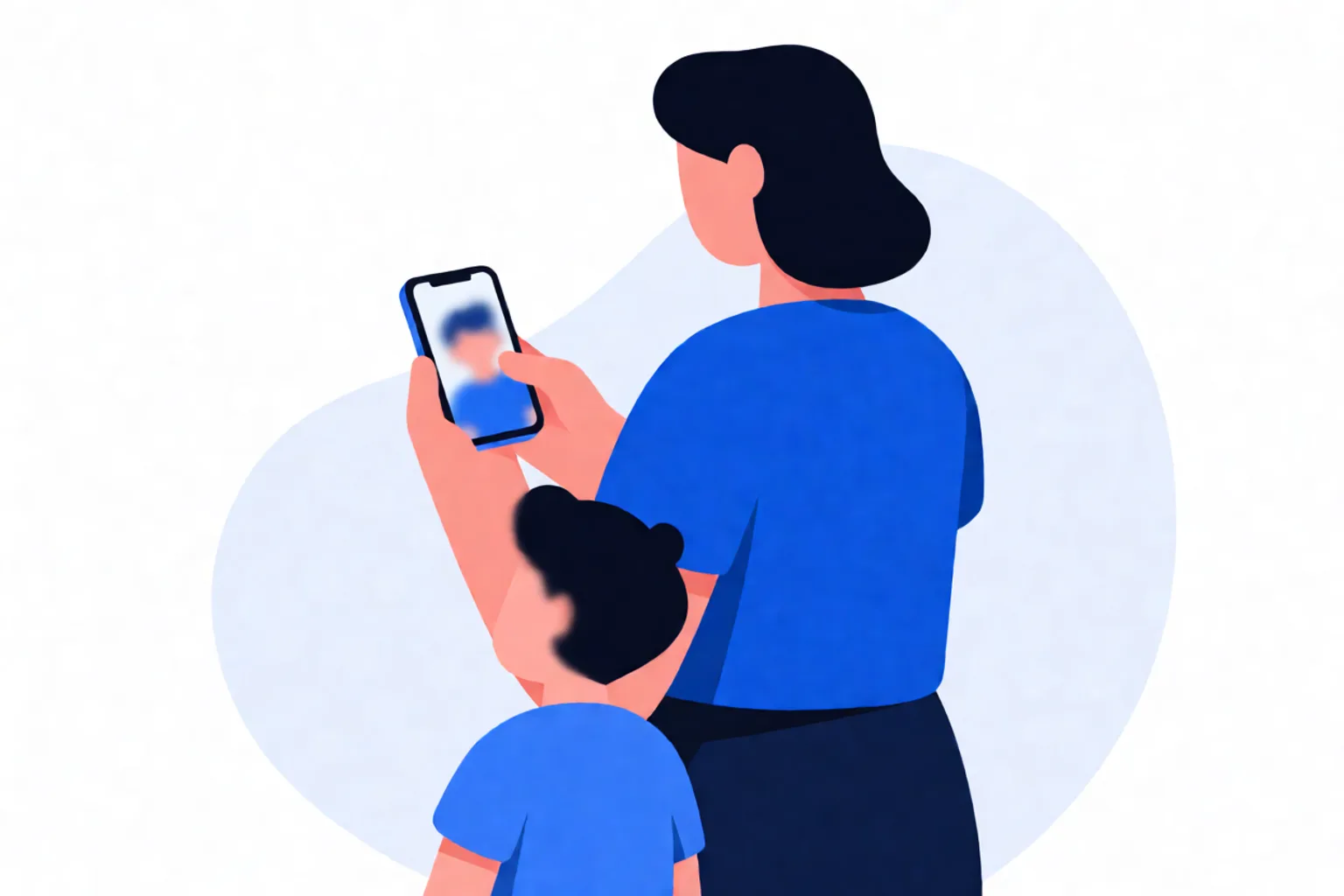
Blur Your Child’s Face Before You Post — A Sharenting Safety Guide
Posting photos of your kids is natural, but once a picture is public it can be copied, saved and rebuilt by people you’ll never meet. A simple habit — blurring your child’s face before it goes online — removes the single most identifying detail. You don’t need a fancy app: you can blur a face in your browser in seconds, and the photo never has to leave your device.
Why It Matters (the “Sharenting” Risk)
Privacy regulators and paediatric bodies are clear about the downsides of over-sharing:
- A child’s image rights are increasingly protected by law — in France, a 2024 law reinforced that publishing a child’s photo is not routine and needs the consent of both parents.
- Everyday photos can be collected and misused by strangers, including to build profiles or generate fake explicit material.
- Once posted, a photo is hard to fully delete — even if you remove it later, copies may remain.
You don’t have to stop sharing. You just share more carefully.
What to Hide Besides the Face
Blurring the face is the start. Before posting, also check for:
- The face — blur it, shoot from behind, or crop to a hand or back.
- School name, logo or uniform — these pinpoint a location.
- Geotags and check-ins — turn off location sharing; they reveal where you are.
- Full name and age — avoid pairing all three with a photo.
- Private moments — skip swimsuit or bath photos entirely.
A useful rule: never put full name + specific location + identifiable photo in the same post. Drop any one of the three and the risk drops sharply.
How to Blur a Child’s Face Online
- Open the photo in a browser editor such as Blur Face Online — no install, works on phone and desktop.
- Auto-detect or brush over the face. Blur Face Online can find faces in one pass; for a single shot, Blur Image Online lets you paint a rectangle or freehand over the area.
- Pick the effect — a solid cover or strong blur for the face, lighter blur for the background if you want it softened.
- Download the redacted copy — the original stays on your device.
For group photos and events, Automatic Privacy Blur can flag every face, plate and text area so you can confirm what to hide.
Account and Sharing Settings
Blurring helps, but pair it with platform settings:
- Keep the account private and share only with people you know.
- Use Close Friends / selected groups so kids’ photos don’t go to all followers.
- Sort your followers and remove people you don’t recognise.
- Ask family and friends not to repost your child’s photo without checking first.
- Periodically delete old posts that are no longer relevant.
FAQ
Can I blur a child’s face on my phone?
Yes. Browser-based tools run on Android and iOS with no app install, so you can redact the photo on the device you took it with.
Does blurring change the original file?
No. Redaction is done locally in your browser; you download a processed copy and the original never leaves your device as part of the normal workflow.
Is a blur or a solid block better for a face?
For everyday sharing, a strong blur or pixelation hides a face well. If the photo is very sensitive, a solid cover block is the safest choice.
Do I need the other parent’s permission?
In many places, yes — publishing a child’s image is treated as a decision needing both parents’ consent. When in doubt, blur the face and keep the post to a private, trusted audience.