
How to Blur Your Home on Google Street View (and in Photos You Share)
How to permanently blur your house on Google Street View in a few clicks, plus how to blur the address and exterior in photos before you post them — a practical home-privacy checklist.
Oct 4, 2026|Toolbox Image|#privacy#image-editing#redaction#tutorial
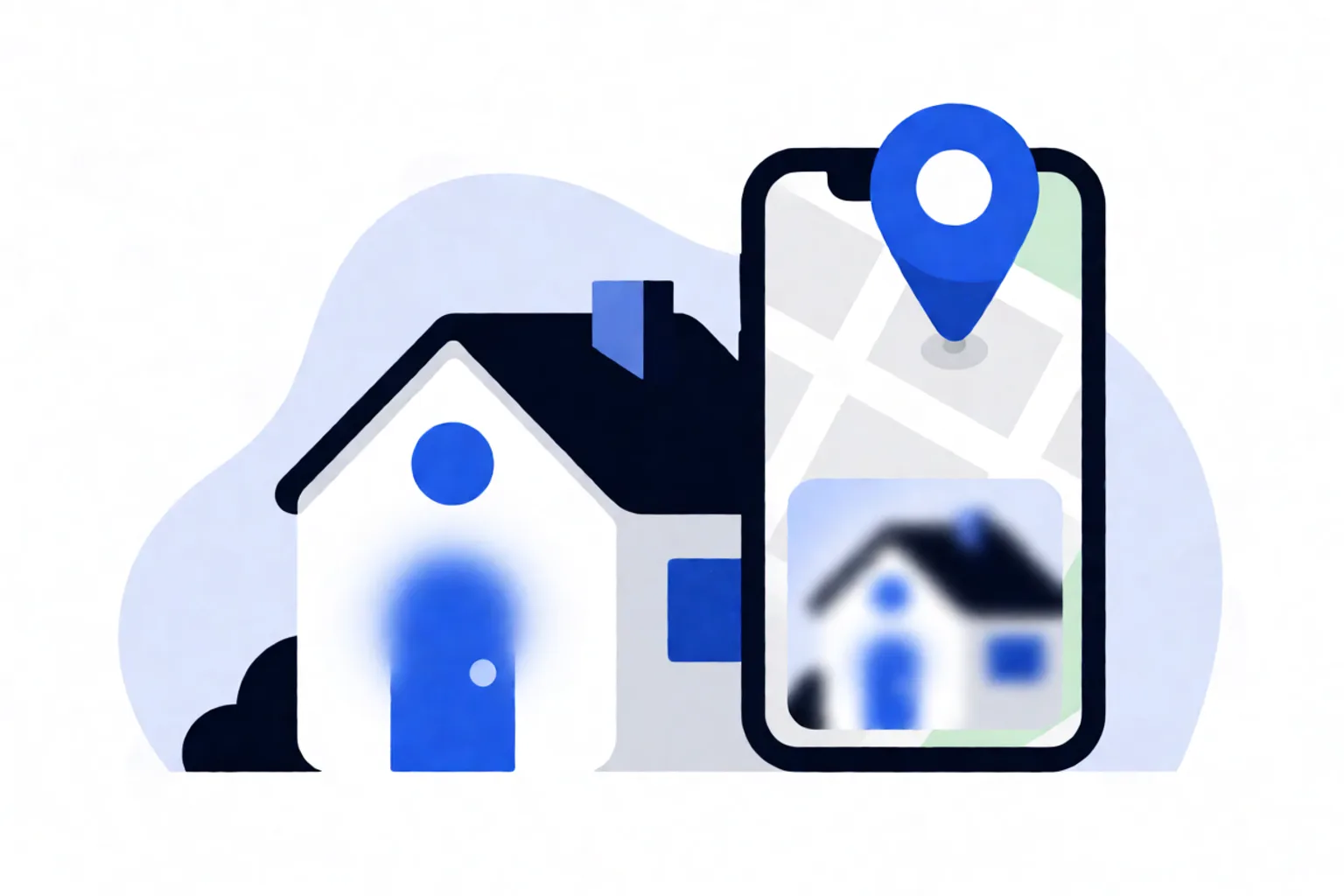
Blur Your Home on Street View — and in the Photos You Share
Type your address into Google Maps, drop into Street View, and there’s a high-resolution photo of your front door, windows and driveway — visible to anyone. If you’d rather keep that private, Google gives you a free, permanent way to blur your home. And the photos you take of your house and post online need the same care. Here’s the full home-privacy playbook.
Part 1: Blur Your House on Google Street View
Only the homeowner or tenant can request a home blur, and once Google approves it, the effect is permanent — it can’t be undone, so frame exactly what you want hidden before submitting.
Steps (best done on a desktop browser):
- Go to maps.google.com and search your home address.
- Click the photo of your home that appears above the address to open Street View.
- In the bottom-right corner, click “Report a Problem”.
- A red-and-black box appears over the image. Move and resize it so your home (and anything else you want hidden) sits fully inside.
- Under the image, choose what to blur: Your home. Add specifics so reviewers know exactly what to hide.
- Enter your email (required), complete the captcha if prompted, and submit.
Google emails to confirm receipt and may follow up with questions. There’s no fixed timeline, but most requests process within a few weeks. In the US you’ll also need to upload proof of address (a utility bill or bank statement with the name and address showing, other details covered).
Part 2: Blur Your Address in Photos You Share
Street View isn’t the only place your home shows up. A “new home” post, a housewunting photo, or a package-on-doorstep shot can all reveal your address. Before posting:
- Blur the house number on the door or mailbox, and any visible street sign.
- Blur number plates of cars parked outside — Blur Licence Plate Online does this in seconds.
- Blur faces of family members in the frame with Blur Face Online.
- Use Blur Image Online to paint over the exact area, or let Automatic Privacy Blur flag candidate faces, plates and text for you to confirm.
What Else Gives Away Your Address
Blurring Street View is a good start, but check the other common leaks:
- Property listings — old sale or rental ads keep high-res exterior and interior photos online.
- Social posts — geotags, “check-ins” and background details in videos.
- Package and delivery photos — the label often shows your full address.
- Mail and documents in the background of any photo.
A Practical Home-Privacy Checklist
Before you share anything showing your place:
- Street View home blur requested (if you want it gone everywhere)
- House number and street signs blurred in your own photos
- Vehicle plates blurred
- Faces of family/neighbours blurred
- No visible package labels or documents
- Geotags and check-ins turned off
FAQ
Is blurring my home on Street View really permanent?
Yes. Google states the blur can’t be removed once approved, and it applies to past and future Street View imagery of that spot. Double-check the framed area before submitting.
Can I do this from my phone?
You can open the request through a mobile browser, but it’s fiddly. A desktop or laptop browser is the reliable way to position the blur box accurately.
Does blurring my house make it more conspicuous?
Possibly — a single blurred house on an otherwise clear street can stand out. It’s a trade-off between privacy and drawing attention. Blur only what bothers you, or consider blurring neighbouring properties too if the view makes yours identifiable.
Can I blur a photo of my house instead of Street View?
Yes, and you should. Browser tools like Blur Image Online let you paint over the house number, plates and faces in any photo before you post it — no app required, and the original stays on your device.