
Blur Image for GDPR: Hide Personal Data Before You Share
How to blur image for GDPR compliance: redact faces, plates, names and screenshots before sharing. A practical checklist for photos that may contain personal data.
Oct 2, 2026|Toolbox Image|#gdpr#privacy#image-editing#compliance
Blur Image for GDPR: A Practical Way to Hide Personal Data
If a photo you are about to post contains someone’s face, a number plate, a name or a screen with account details, that picture may count as personal data under the GDPR. The safe habit is simple: blur image for GDPR purposes before it leaves your device. You do not need legal training to do the right thing — you need a quick editing pass that hides the identifiers.
Why Images Fall Under the GDPR
The GDPR protects any information that relates to an identifiable person. A raw photo often carries more than the subject:
- Faces and bystanders in the background
- Number plates on cars and delivery vehicles
- Names, emails and order numbers in screenshots
- Addresses on package labels
- Account details in app captures
Once such an image is published, removing it is hard. Blurring or redacting the sensitive parts first is the low-cost step that prevents the problem.
What to Redact Before Sharing
A good blur image for GDPR workflow covers these areas:
- Faces — use Blur Face Online for group photos, events and street shots.
- Text and fields — use Blur Text in Image for screenshots, order numbers and forms.
- Licence plates — use Blur Licence Plate Online for vehicles and used-car photos.
- Whole documents — Automatic Privacy Blur can detect candidate faces, plates and text areas so you can confirm what to hide.
For anything that must disappear completely, a solid cover block works better than a soft blur. Pixelation is a good middle ground for short strings such as names or plates.
A Quick GDPR Image Checklist
Before you hit publish, ask:
- Is there a face that is not the intended subject? → blur it
- Does a plate or vehicle appear? → redact it
- Are names, emails or numbers visible? → cover them
- Is a location or address readable? → hide it
- Could any detail identify a person indirectly? → blur to be safe
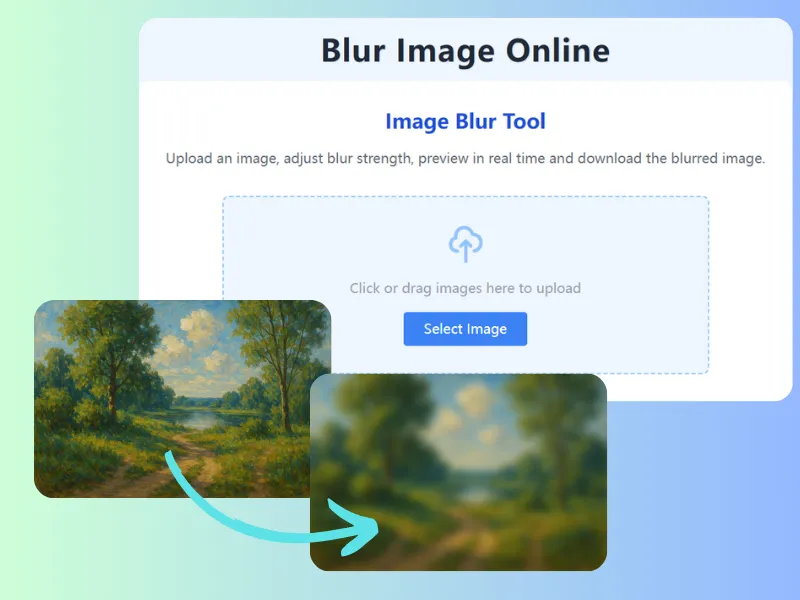
You can run this check with Blur Image Online, which keeps the original on your device and exports only a processed copy.
Does Blurring Alone Make an Image Compliant?
Blurring helps, but it is not a magic switch. The GDPR is about necessity and context: share the minimum that serves your purpose, keep identifiers out, and avoid publishing more than needed. A strong blur or pixelation is usually enough to hide faces, emails and casual screenshot details, but for highly sensitive records consider a more conservative approach and store the clean original only where it belongs.
FAQ
Can I blur image for GDPR on mobile?
Yes. The tools run in the browser, so they work on Android and iOS without any app install.
Is blurring enough to anonymise a photo?
For everyday sharing, a strong blur or pixelation is enough to hide faces, names and plates. For sensitive records, also remove the context that could identify someone.
Do my images leave the device?
No. Blurring happens locally in your browser, so images are not uploaded as part of the normal workflow.