
Censor Photo Online: Redact Faces, Text & Plates Before Sharing
How to censor a photo online: redact faces, licence plates, names and screenshots before sharing. A practical guide to photo redaction that keeps the original on your device.
Oct 3, 2026|Toolbox Image|#privacy#image-editing#redaction#tutorial
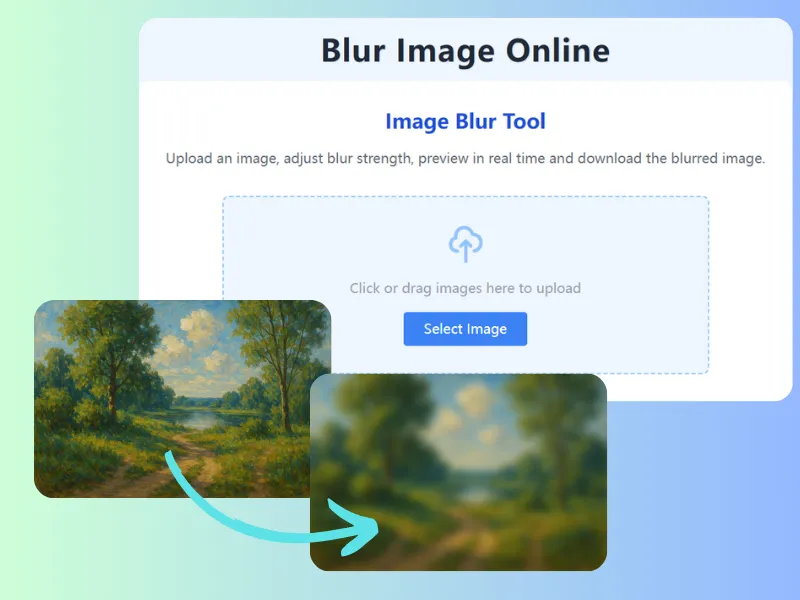
Censor Photo Online: A Practical Way to Redact What You Share
When a photo carries a face you didn’t ask permission to post, a number plate, a name or a screenshot full of account details, the responsible move is to censor the photo before it goes anywhere. You don’t need desktop software or a paid app — you can censor a photo online in a few seconds, right in your browser.
What “Censoring” Actually Means
Censoring (or redacting) an image means making specific parts unreadable while leaving the rest intact. Common redaction targets:
- Faces of bystanders, clients or strangers in the background
- Licence plates on cars, vans and delivery vehicles
- Text such as names, emails, order numbers and addresses in screenshots
- Account details visible in app captures and chat screenshots
- Documents where only one field needs to stay visible
For permanent hiding, a solid cover block beats a soft blur. For short strings like names or plates, pixelation is a solid middle ground.
How to Censor a Photo Online
A simple workflow that works on any device:
- Open the image in a browser-based editor such as Blur Image Online.
- Select the area with the brush, rectangle or lasso tool — draw over the face, plate or text you want gone.
- Apply the effect — Gaussian blur, pixelation or a solid cover, depending on how permanent the hiding should be.
- Export only the redacted copy — the original stays on your device.
For group photos and events, use Blur Face Online to hide every face in one pass. For screenshots with sensitive fields, Blur Text in Image targets the words directly. For vehicles, Blur Licence Plate Online hides the plate in seconds.
Censor vs Blur vs Pixelate
| Effect | Best for | Permanence |
|---|---|---|
| Solid cover | Account numbers, full documents | Highest |
| Pixelation | Short strings: names, plates | High |
| Gaussian blur | Faces, backgrounds | Medium-High |
If you’re unsure how strong to go, Automatic Privacy Blur can detect candidate faces, plates and text areas so you can confirm what to hide.
A Quick Redaction Checklist
Before you post, ask:
- Is there a face that isn’t the intended subject? → censor it
- Does a plate or vehicle appear? → redact it
- Are names, emails or numbers visible? → cover them
- Is an address or location readable? → hide it
- Could any detail identify a person indirectly? → censor to be safe
FAQ
Can I censor a photo on mobile?
Yes. Browser-based tools run on Android and iOS with no app install, so you can redact on the device you took the photo with.
Does censoring change the original file?
No. Redaction happens locally in your browser; you download a processed copy and the original never leaves your device as part of the normal workflow.
Is pixelation or blur better for faces?
For everyday sharing, a strong blur or pixelation hides faces well. For highly sensitive records, prefer a solid cover block.