
Unblur Screenshot Online: Make UI Text Easier to Read
Learn how to unblur screenshots online, improve fuzzy UI text, and protect private details after enhancing clarity.
Jun 3, 2026|Toolbox Image|#unblur-screenshot#screenshot#image-tools
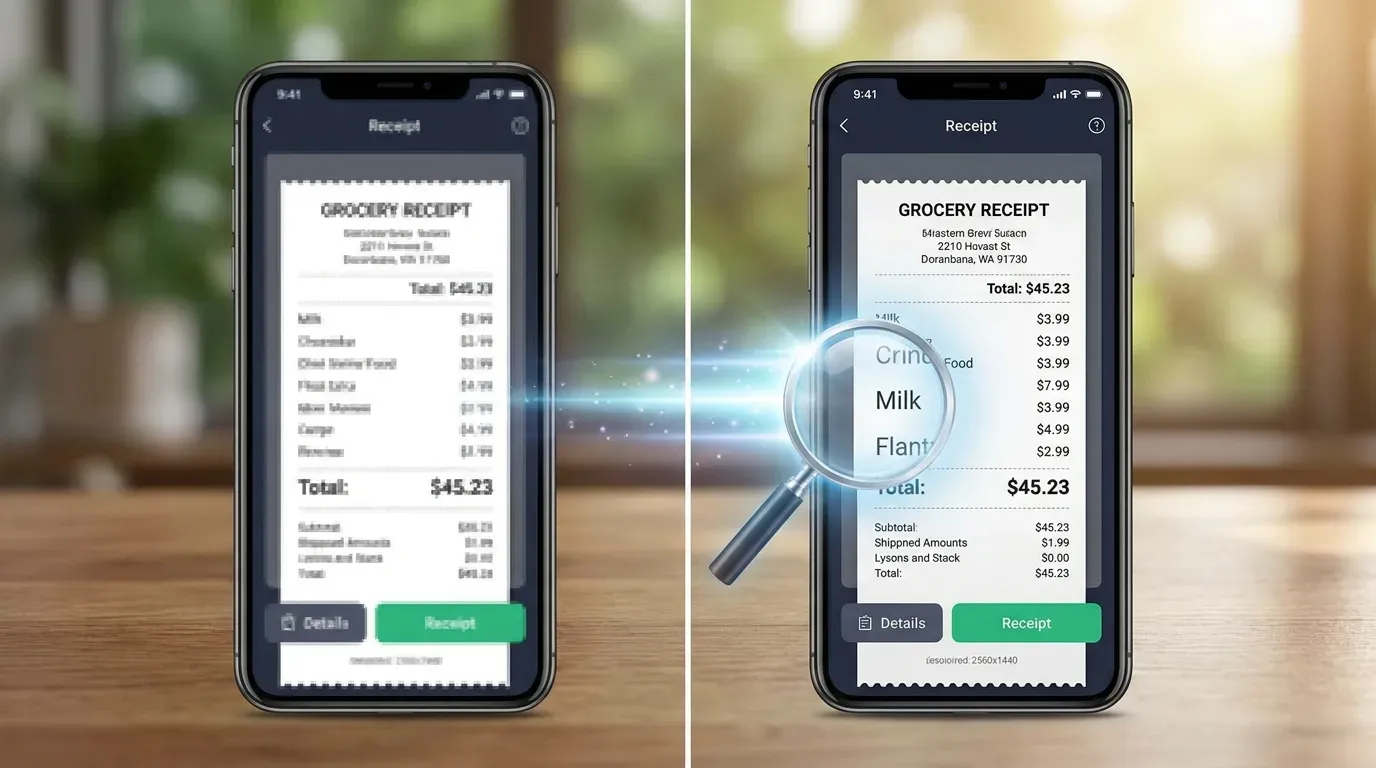
Unblur Screenshot Online: Make UI Text Easier to Read
Screenshots often lose quality in boring ways. They get resized for a document, compressed by a chat app, uploaded to a help center, or copied into a slide. Suddenly the UI text looks soft and the icons are harder to read.
If the screenshot still contains visible detail, an AI unblur tool may make it clearer.
Quick Answer
Use Unblur Screenshot Online when UI text, icons, or interface edges are slightly fuzzy but still partly readable.
It works best for your own screenshots that lost quality during resizing or compression. It is not a reliable way to recover intentionally hidden information.
When Screenshot Unblur Helps
Try it for:
-
Tutorial screenshots
-
Help center images
-
Bug report screenshots
-
UI documentation
-
Dashboard screenshots
-
App interface captures
-
Images resized for blog posts
The tool is most useful when the screenshot is already close to readable.
When It Will Not Help Much
Do not expect reliable results from:
-
Tiny screenshots
-
Heavy blur
-
Intentionally blurred text
-
Screenshots copied through many apps
-
Text that is already unreadable
-
Low-quality photos of screens
If accuracy matters, try to capture a new screenshot instead.
How to Unblur a Screenshot Online
-
Open Unblur Screenshot Online.
-
Upload the fuzzy screenshot.
-
Run AI enhancement.
-
Check text, icons, and interface lines.
-
Download the clearer version if it helps.
For documentation, compare the enhanced result against the original UI whenever possible.
Privacy Warning
Making a screenshot clearer can also make private details easier to read.
After enhancement, check for:
-
Names
-
Emails
-
Browser tabs
-
URLs
-
API keys
-
Account IDs
-
Chat previews
-
Dashboard metrics
-
Internal project names
If you plan to share the screenshot, use Blur Screenshot Online after enhancement to hide private details.
FAQ
Can AI unblur screenshot text?
Sometimes, if the text is only slightly fuzzy. It cannot reliably recover text that is heavily blurred or missing.
Should I use screenshot unblur for legal or financial proof?
Be careful. Enhanced screenshots may not be reliable as exact evidence. Use the original source when accuracy matters.
Should I blur private details before or after unblurring?
Usually after. Enhance first, then blur private details before sharing.
Final Thoughts
Screenshot unblur is best for practical readability. It can make tutorials, support images, and documentation cleaner when the source is only mildly soft.
Try Unblur Screenshot Online when a screenshot needs clarity, then review privacy before sharing it.
Related image editing guides
How to Blur a Photo Background Online Without Blurring the Subject
Learn how to blur a photo background online, keep the subject clear, avoid common selection mistakes, and create a cleaner portrait or product image.
Box Select and Freehand Blur: Two Precise Ways to Hide Image Details
Learn when to use box select blur and freehand selection blur to hide faces, text, screens, plates, and private details in images online.
Blur Face Online: A Practical Privacy Guide
Learn how to blur faces online before sharing photos. Protect identities in group pictures, events, listings, and social posts without losing context.
Resize Image Online: Batch Width and Height Guide
Resize images online by exact width and height. Learn batch resizing, aspect ratio tips, output formats, and quality settings for cleaner exports.